
POS system for restaurants
Built for Friday night.
The till that keeps selling when the internet goes down. Sales, phone, website, journal, food safety checks and emergency plan in one system.
Fridge checked before the first customer.
Today’s checks are ready on the till and on the phone. Measure, type in the number, on to the next. Food safety checks are a module: you turn it on with a code from Allivo and set it up the first time.
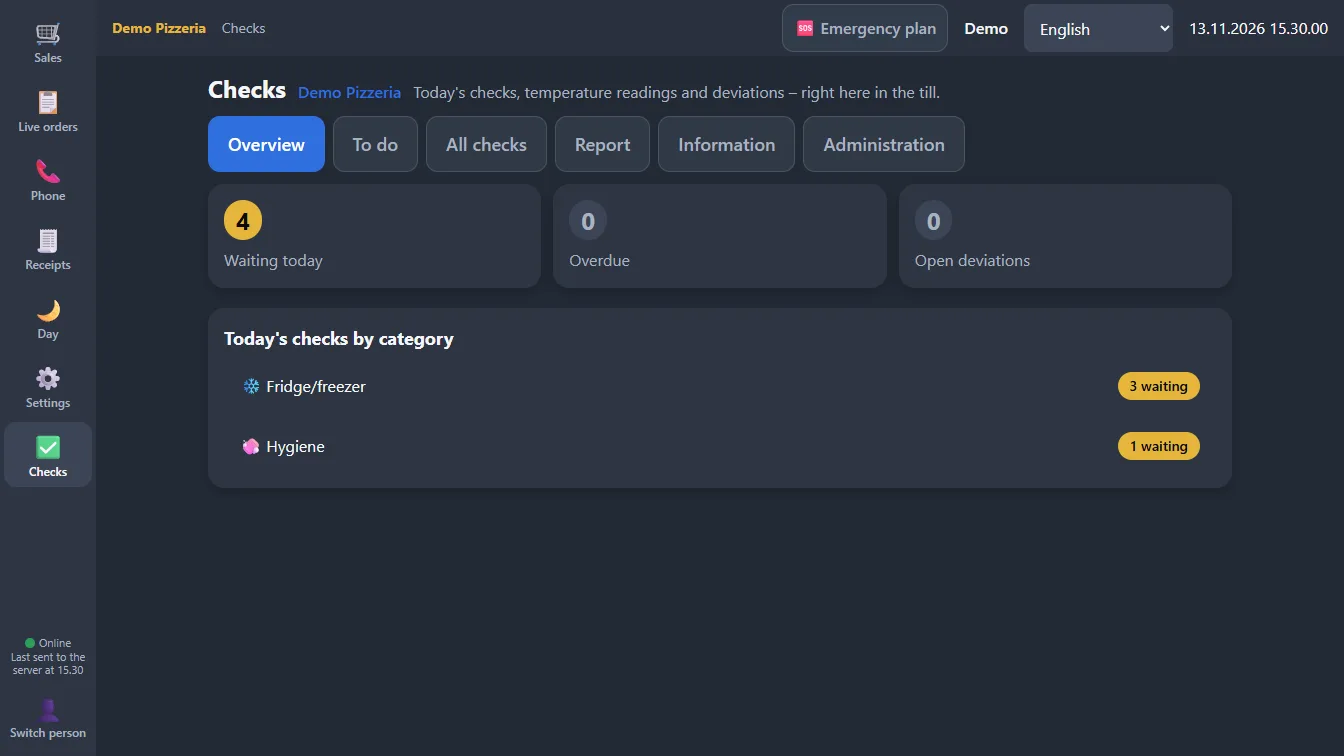
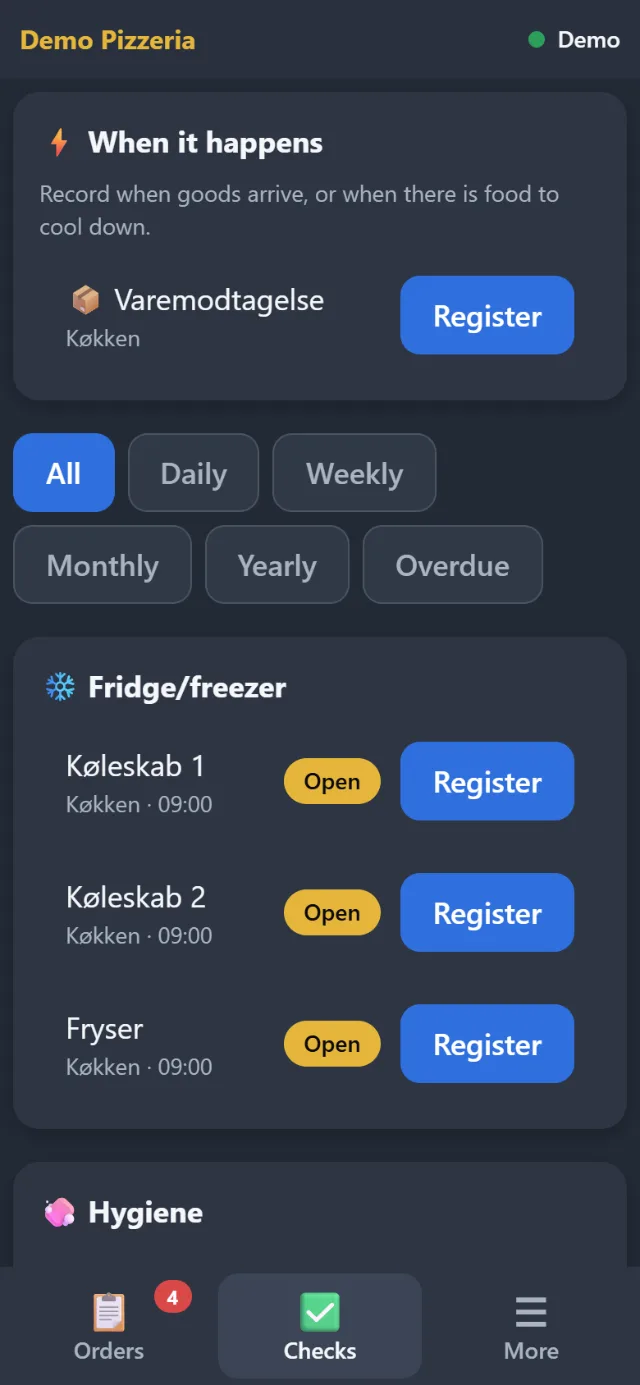
- Fridge, freezer, cooling, goods receipt and cleaning on one list
- If something is off, write a note and take a picture with the phone
New on shift. The till speaks their language.
One tap on the login screen and the till’s screens are in Danish, English, German, Turkish, Arabic or Kurdish (Sorani). In Arabic and Kurdish the screen is mirrored, so it reads from the right.
See the same screen in:
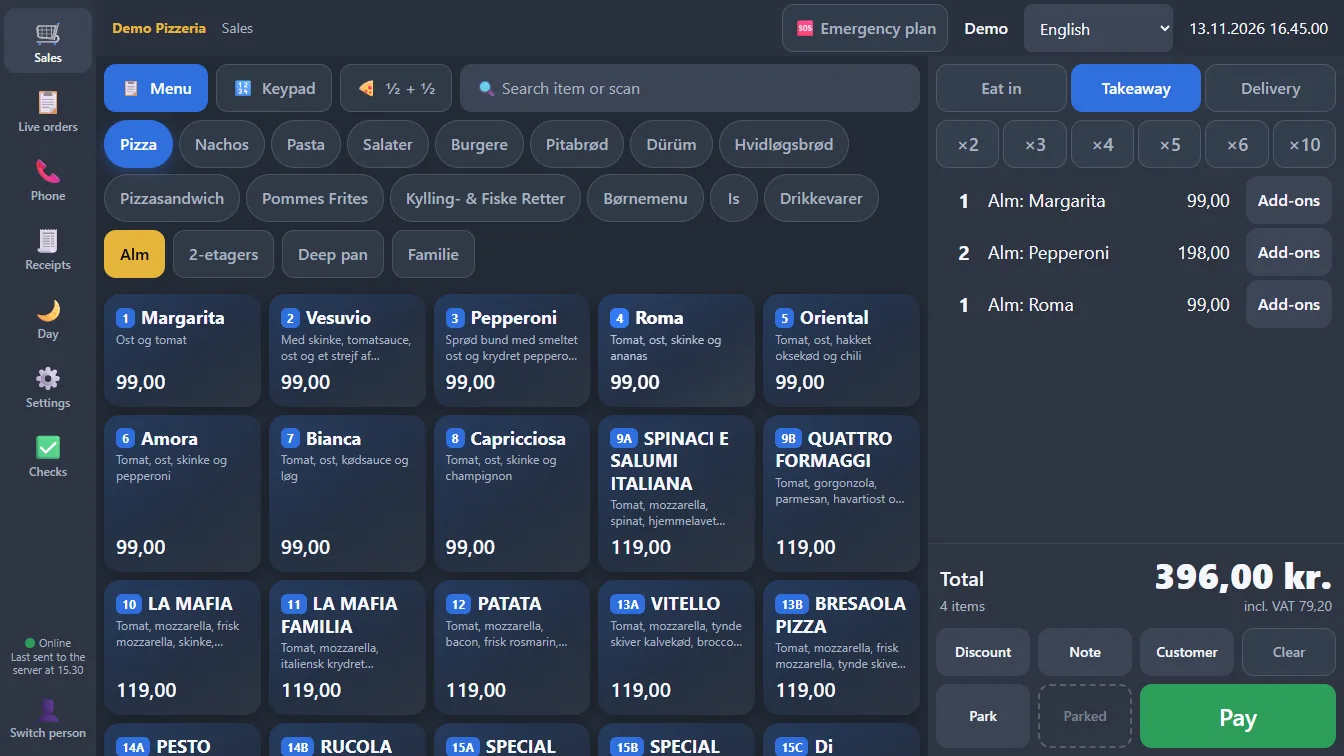
The ticket is always in Danish, and items appear as you wrote them. Only the screen changes.
The phone rings. The till remembers the regular.
Type the number. If the customer has ordered from the same till before, name and address are ready. Four steps on one screen: who, when, what and payment.
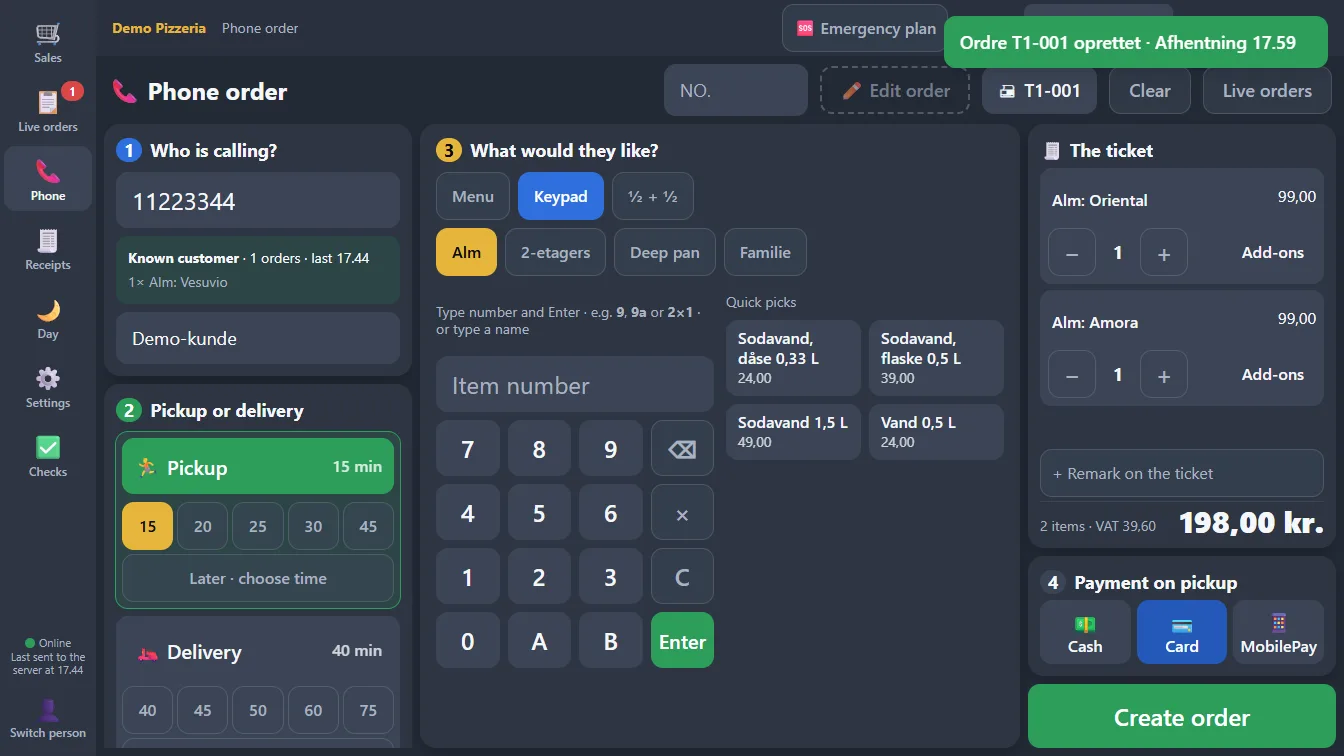
- Type item number 9 and the till suggests 9A and 9B
- Pickup or delivery, in minutes or at a set time, tomorrow too. Delivery is a module
- No ham, extra cheese, well done: it’s all on the kitchen ticket
The website rings. And it keeps ringing.
A new order from the restaurant’s own website goes ding-dong and puts a bar at the top of every page on the till. It keeps going until someone taps OK or Start, or the order is paid or cancelled.
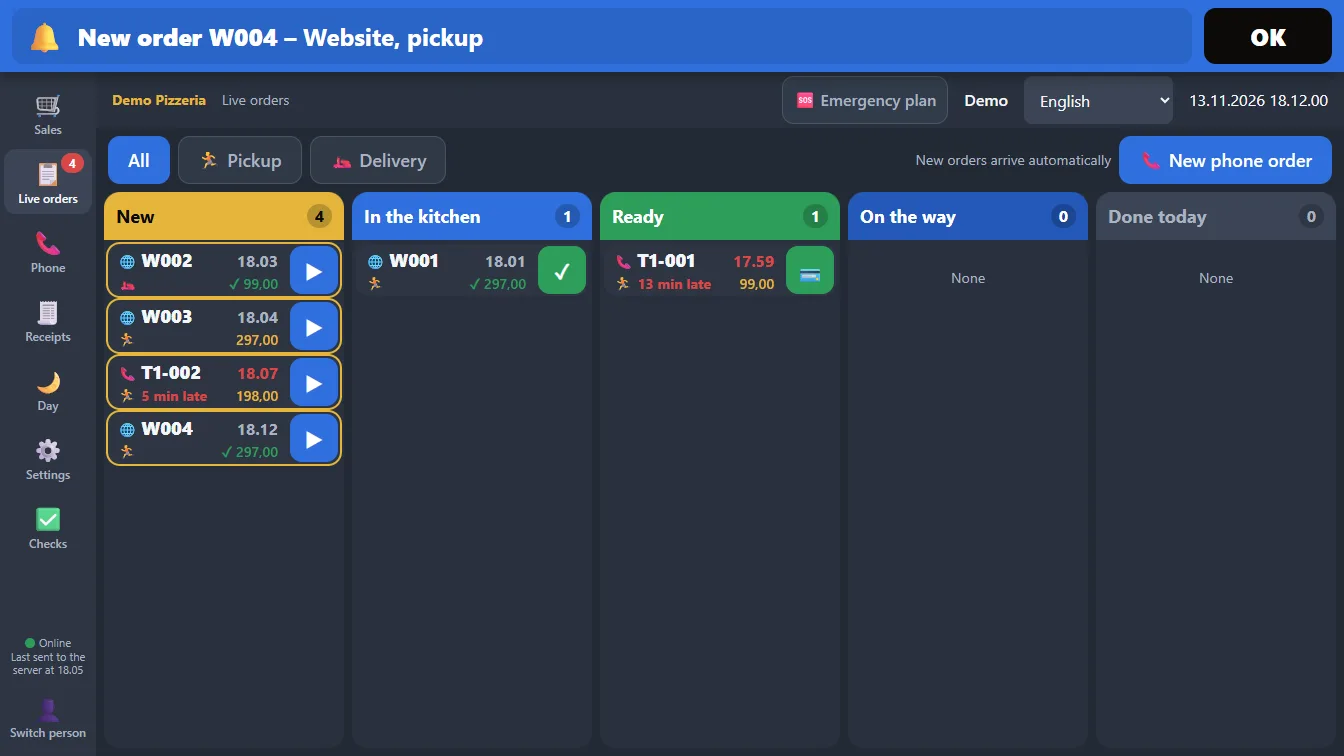
- Phone orders and website orders on the same board: New, In the kitchen, Ready, On the way, Done today
- Each order is one row, so 10 orders per column fit on the till’s screen. The card shows whether the order is paid
- Website orders are a module. Your website’s server must be programmed to send orders to Allivo with a key. Items are matched by item number or name
Three taps: Pay, Cash, Exact.
Cash, card or MobilePay. With cash, the drawer opens and the change is shown big enough to read from a distance.
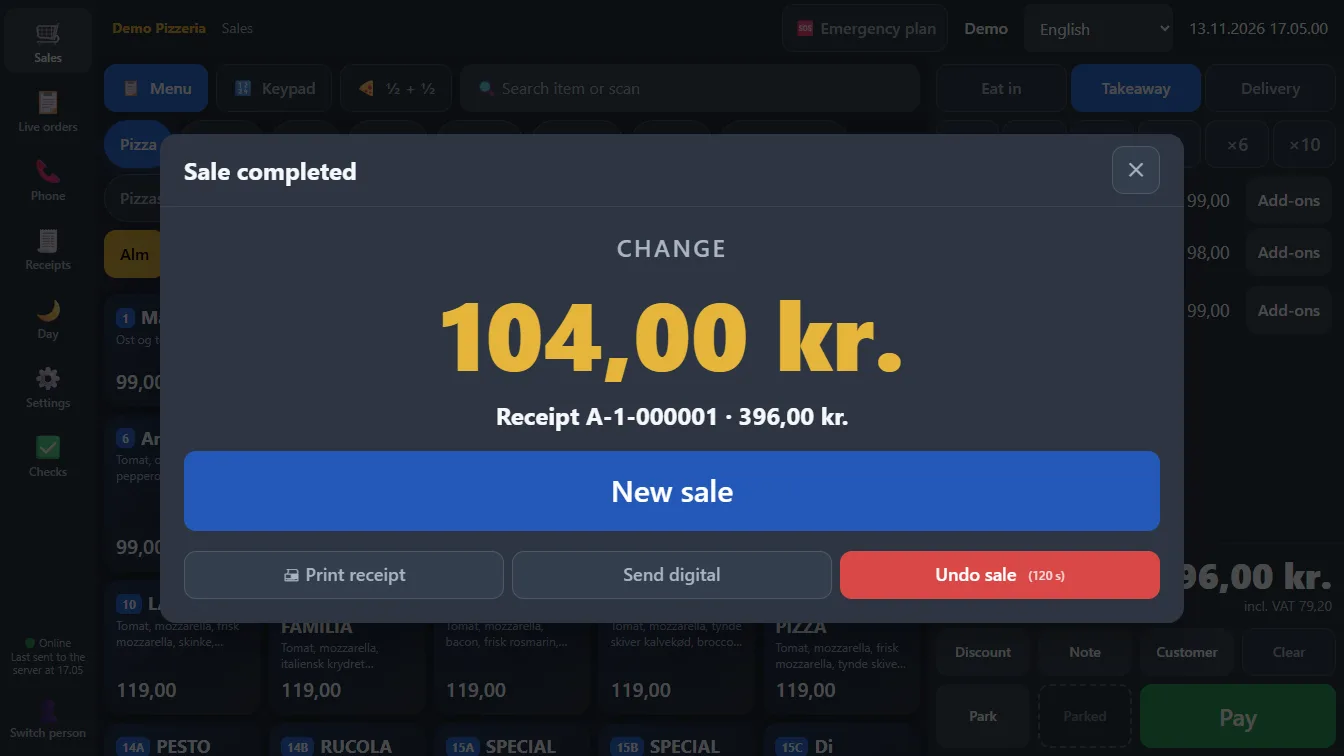
- If you count notes and coins, tap the ones the customer hands over
- Undo the sale within 2 minutes. It becomes a new entry, not a correction
- Split payment: cash, card and MobilePay on the same receipt
The card terminal
- Today
- The till shows the amount. Staff key it into the terminal and tap "Yes, approved". The payment is recorded in the journal.
- Cancel
- A card payment that is waiting can always be cancelled from the till.
- Refunds
- Work the same way: the till shows the amount, and staff confirm.
- Direct integration
- Not built yet. The till already has a fixed place for the terminal: the payment waits for an answer before the sale is completed.
The internet is down. The till keeps selling.
Sales are saved on the till with their numbers, and you can also log in without internet. The bar at the top says when the internet went down and how many sales are waiting.
Try it yourself
A small demo on this page, not the till itself. The text in the bar is the till’s own.
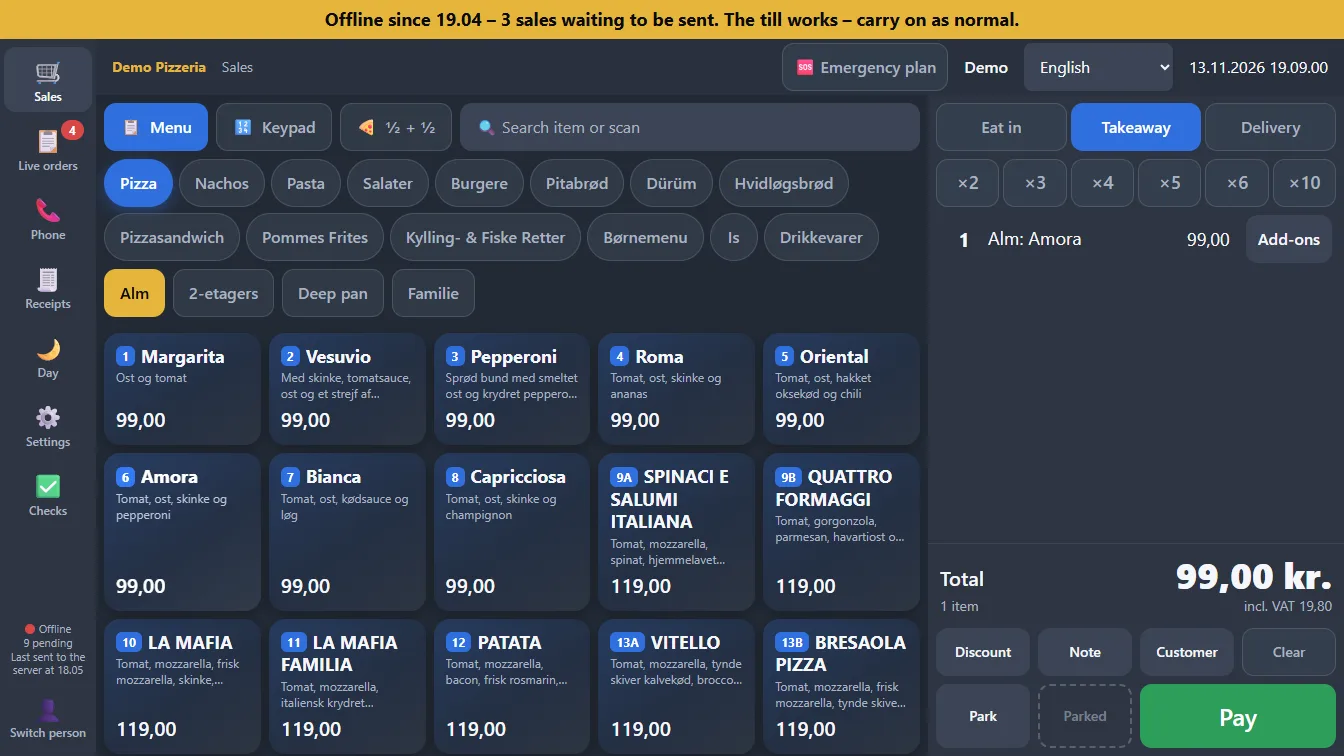
Orders from the website only come in when the internet is back and the website sends them again. Until then, you answer the phone. A network printer only prints again when the till can reach the server. The built-in printer in the Allivo app works without internet.
Nobody touched a thing.
The internet comes back and the till sends everything by itself. A green bar says so, then disappears.
And if more goes wrong?
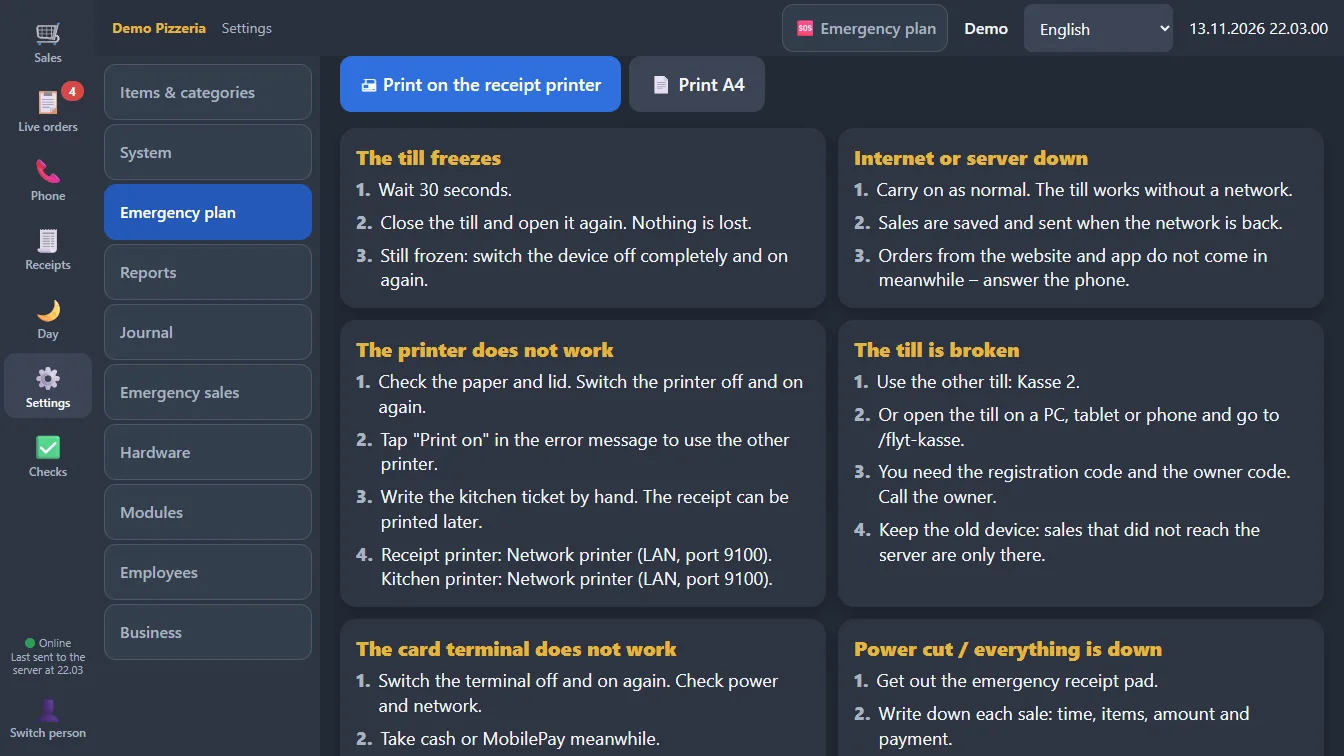
Plan B is already built. You get it ready in advance: print emergency tickets and the emergency plan, and set up the backup printer.
#1
The printer stops
If the printer reports an error, it shows on the screen with one button: print on the other printer. Turn on the backup and it happens by itself. This needs two printers, and a network printer can’t report that the paper has run out.
#2
The till freezes
The Allivo app notices after 30 seconds and reloads the till. If that doesn’t help, it starts over. If it happens three times in 10 minutes, the app shows the "Restart the till" button.
#3
The till breaks
Move the till to another device with the registration code and the owner code. This needs a connection to the server. Sales that didn’t reach the server are only on the old device.
#4
Everything is down
Print numbered emergency tickets while the till works. When everything is down, write down the sale, and register it afterwards with the owner code as a new entry. Ask your accountant whether this procedure suits you.
#5
Nobody knows what to do
The emergency plan is on a ticket, on A4 and on a phone without login. Print it, and open the link on the phone while the internet works. The owner edits the text themselves.
The kitchen is busy. The phone is with you.
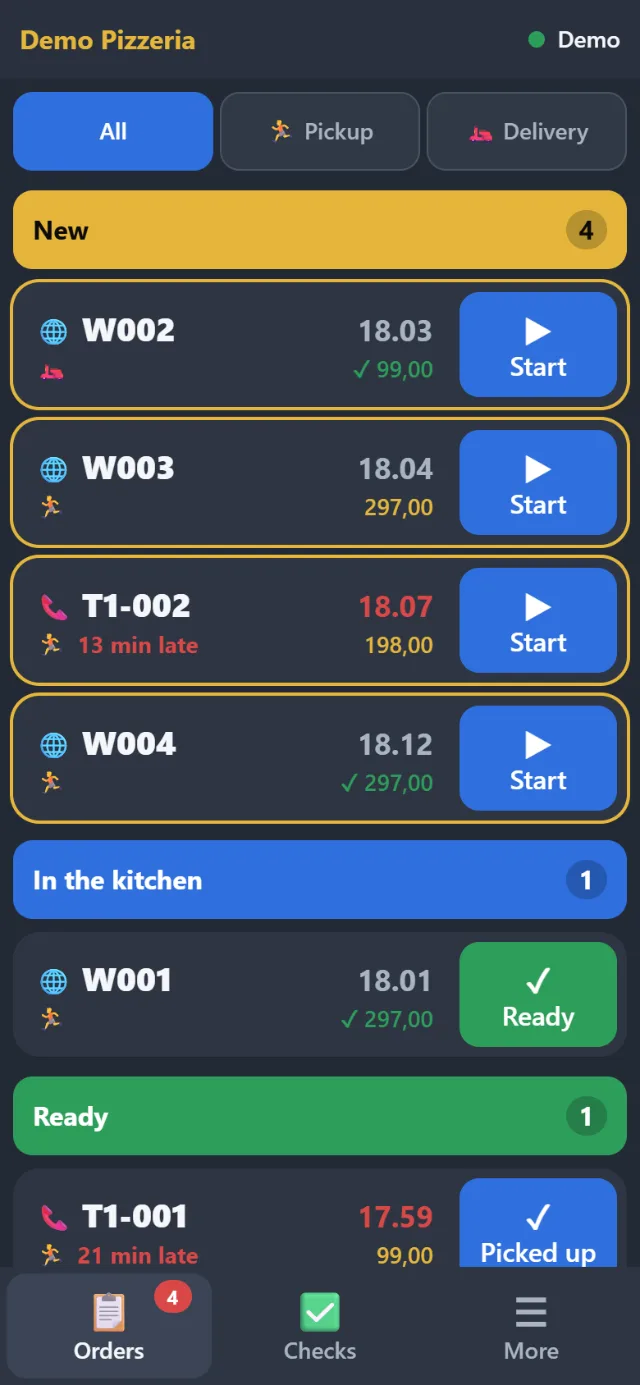
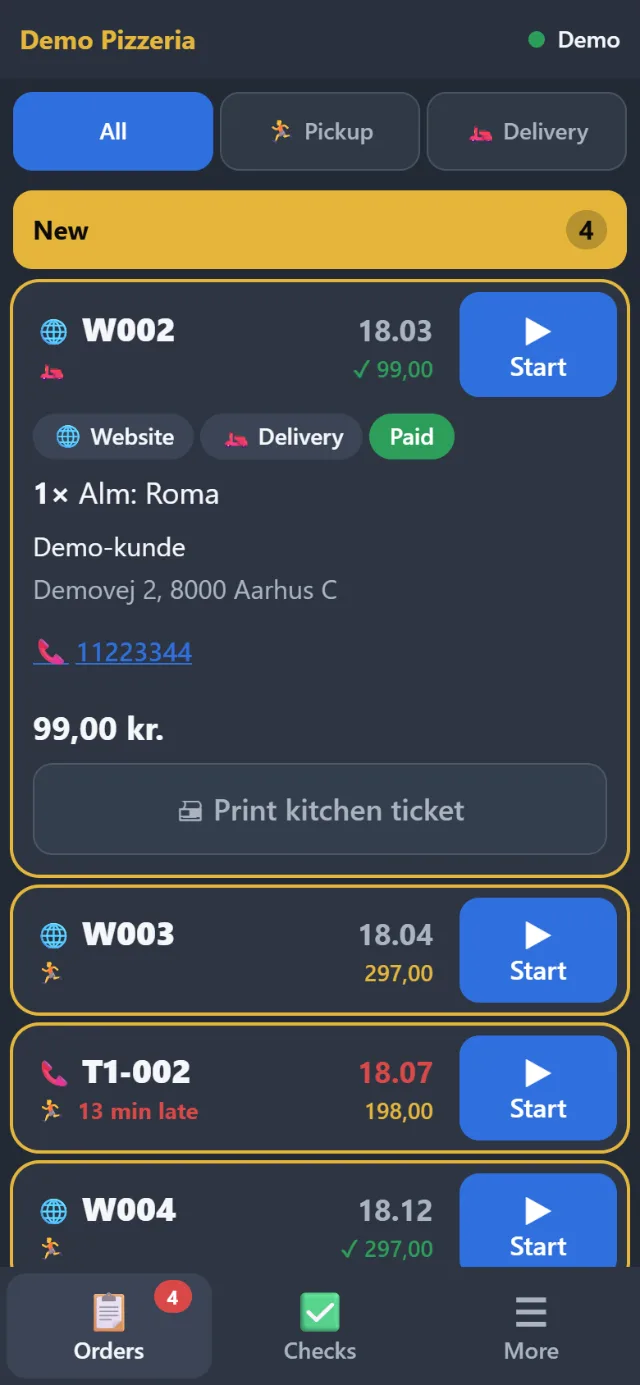
Scan a QR code and log in with your own PIN. Then you have the orders and the food safety checks with big buttons. The bell rings while Allivo is open and the phone isn’t locked.
- Start, Ready, Picked up and Delivered on big buttons
- Tap the printer on the phone, and the till prints the kitchen ticket. The till must be on
- A phone isn’t a till: no sales and no journal. The owner can block it
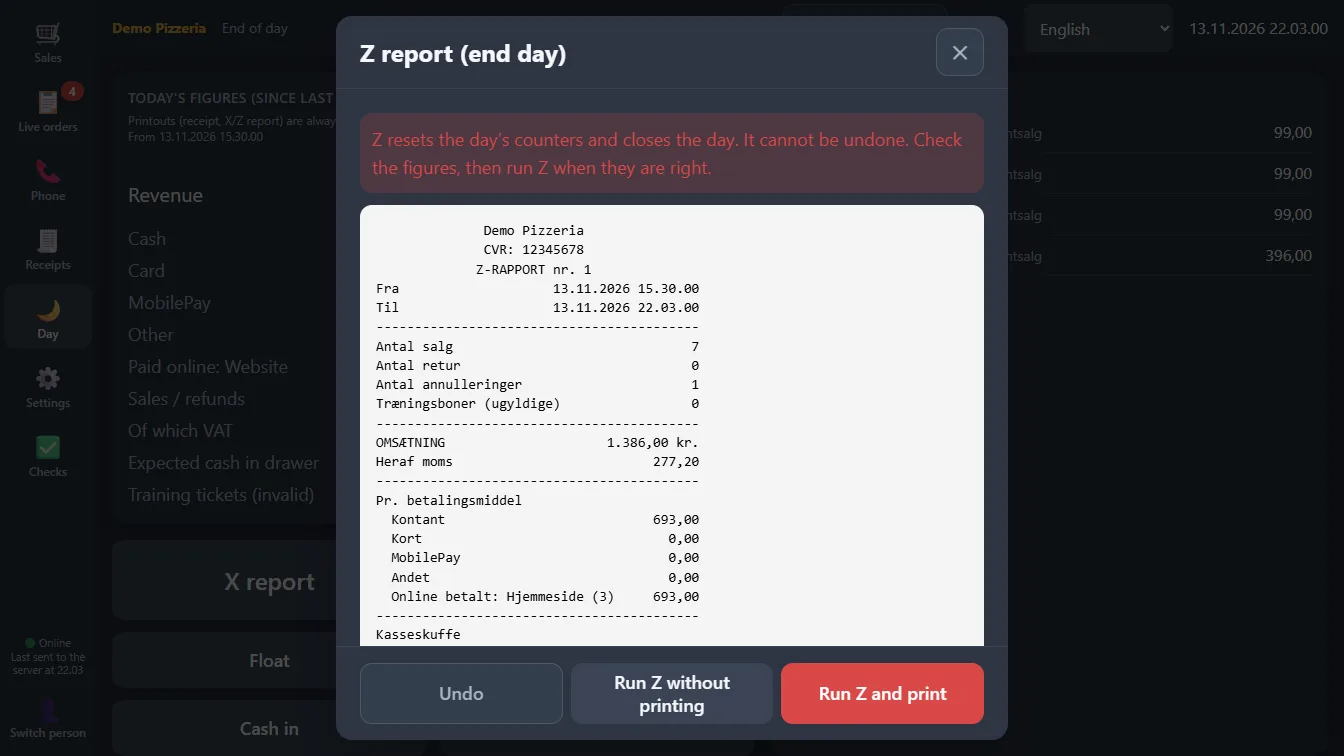
Closing time. You see the Z before it’s run.
X and Z are on the screen before anything is printed. Revenue, VAT, payment methods and what should be in the drawer are all in one place.
- The journal only takes new entries. Refunds and cancellations are always new entries
- Each entry is tied to the one before. If an old entry is changed, the check detects it
- The SAF-T file comes straight from the journal, for the whole CVR number or for one till
Show it to your accountant. Whether it meets the rules is for your accountant and the authorities to judge, and the Danish Tax Agency’s own control program hasn’t been run on the file yet.
Everyone’s asleep. Allivo makes a copy.
Every night at 04:00 the database is copied and the copy is checked. 30 daily and 12 monthly copies are kept. Pictures from the food safety checks aren’t included yet.
- If there is no approved copy from the last 2 days, the tile turns red
- The copy is kept on the server. An extra copy can be set up on your own USB disk or network drive
The bill
- Till and payment
- Live orders
- Phone orders
- Orders from your website (module)
- Journal, X, Z and SAF-T
- Food safety checks (module)
- Emergency plan and offline sales
- The phone and the Android app
- Six languages
TotalALL IN ONE SYSTEM
PriceContact us
Thanks for visiting – see you again!
Built with a restaurant owner.
Every request for Allivo comes from a restaurant owner who is in the thick of it. The till is tested on a real Sunmi till with a real menu.
How to get started
Menu from Excel
Fill in the template and see each item before you save.
Training
Staff practise. Everything is marked INVALID and doesn’t count.
Equipment
The Allivo app for Android tills, first the Sunmi T2s. The till can also run in a browser.
Next Friday is coming.
Tell us about your restaurant and we’ll work out the price together.